Pro
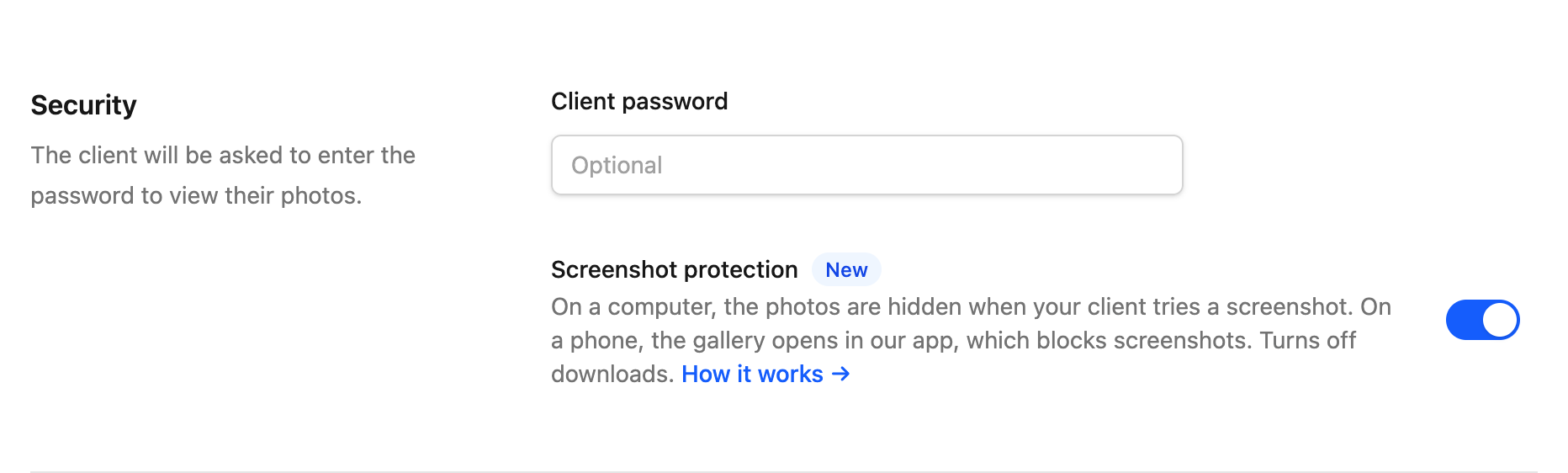
Screenshot protection
Stop your clients from saving your photos with screenshots, on computers and on phones.
Pro This feature is available exclusively on the Pro plan. Upgrade to Pro →
With screenshot protection on, your photos are protected on any device your client opens the gallery on. It works for photo selections and for digital deliveries.
- On a computer. The photos are hidden when your client tries to take a screenshot.
- On a phone. The gallery opens in our app, which doesn't allow screenshots or screen recordings.
- No downloads. Download buttons, the ZIP file and social sharing are turned off for this gallery.
How to turn it on
New photo selections have it on already. For a delivery, or for a gallery you already had:
- Open the client and click "Edit".
- Go to the "Security" section.
- Turn on "Screenshot protection" and save.
- Share the gallery link with your client the same way as always.
A protected gallery can't charge to view or download, so if it has that charge, remove it first. Charging for extra photos in a selection still works, from a computer.
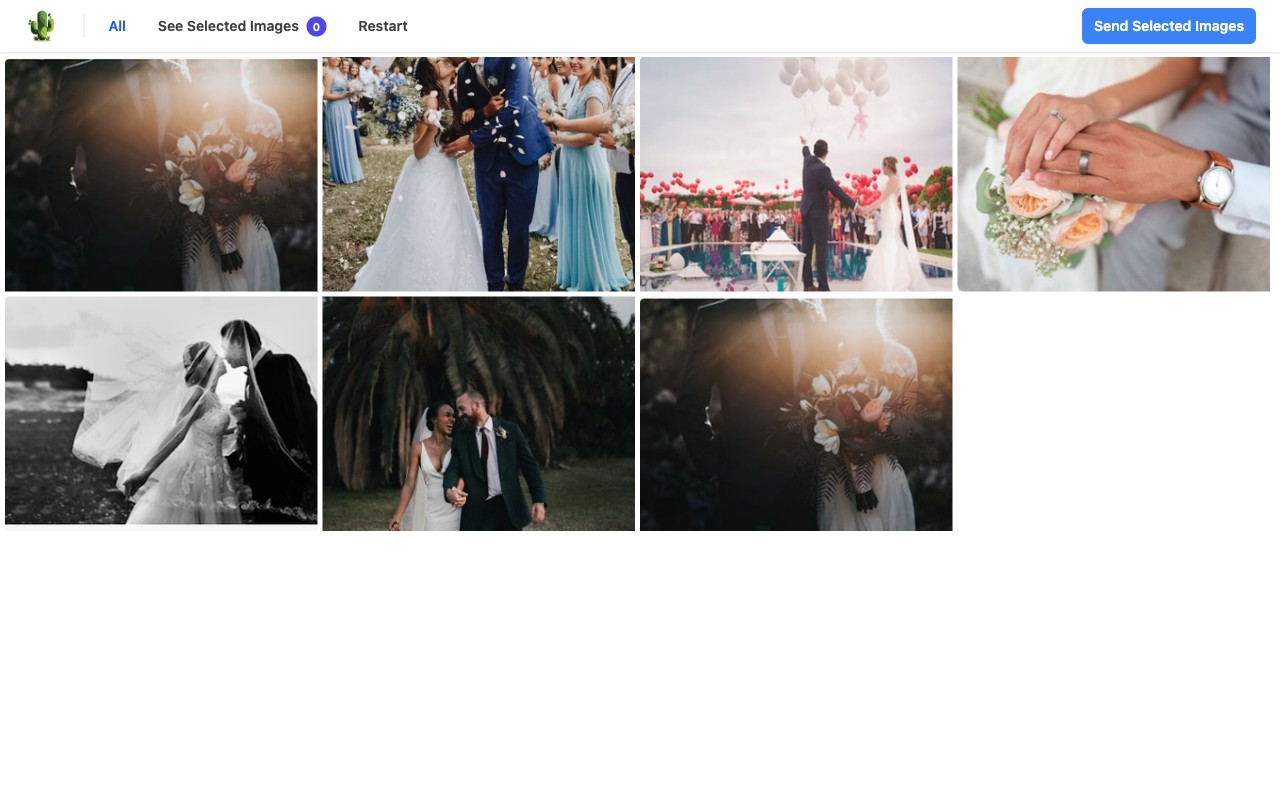
On a computer
- When they try a screenshot. The photos disappear and a dark screen with the message "Return to this window to see the photos." takes their place. That is what the screenshot captures.
- When they come back to the gallery. The photos return as soon as your client moves the mouse.
- When they print. If they try to print the gallery, the page comes out blank.

On a phone
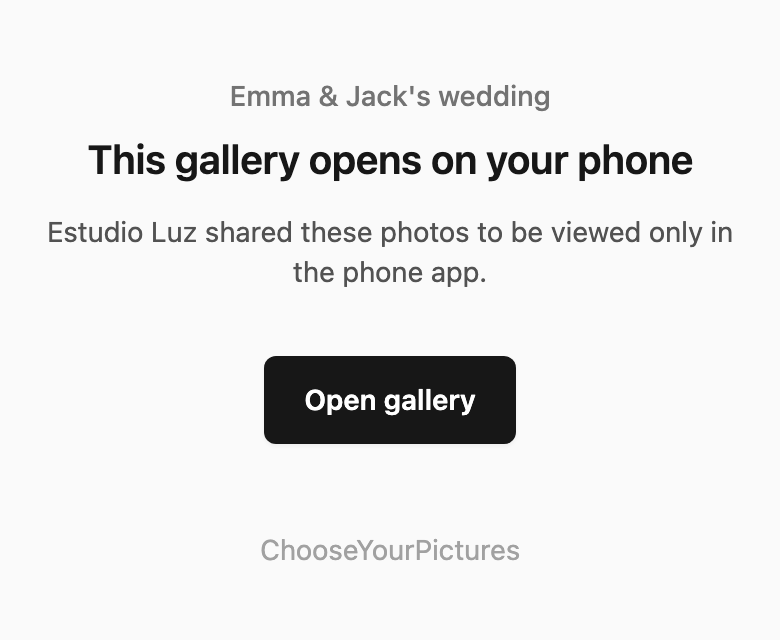
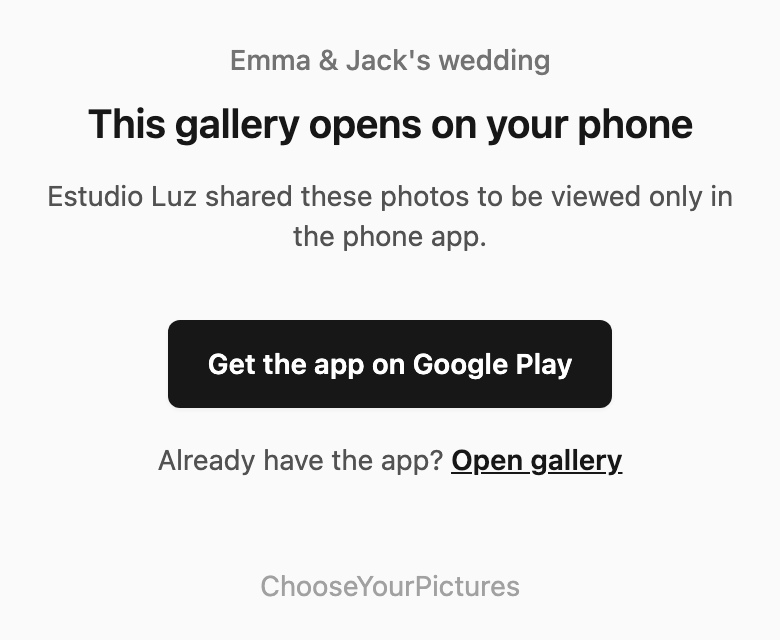
When your client opens the link on their phone, the gallery opens in our app, where the phone doesn't allow screenshots or screen recordings.
- On iPhone or iPad. They open the link and tap "Open gallery". The gallery opens right away in an App Clip, with nothing to install, and the photos don't appear in screenshots.
- On Android. They tap "Get the app on Google Play" and install it. Then they open your link again, or tap "Open gallery" under "Already have the app?". The phone doesn't allow screenshots inside the app.
Inside the app your client sees the same gallery as always. In a selection they can choose their photos and send them to you. Extra photos aren't charged inside the app: if they choose more than are included, they see the limit notice.
If your client asks where to get the app: App Store · Google Play. On iPhone they don't need it, because the App Clip opens on its own.
Reviewing your own gallery
You see the gallery the same way your clients do: on your computer with the protection on, and on your phone inside the app.
Good to know
The protection makes copying your photos much harder, but it can't stop someone from photographing the screen with another phone, and on a computer some capture software can get past it. You can turn it off whenever you like: the gallery goes back to opening in any browser right away.